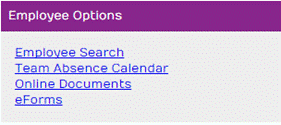
On the Manager Home Page under Employee
Options Section, you can find the Employee Search link. This Screen allows you to search for the
Employees that are assigned to you.
Within the
Search Option Section, click the ‘Search’ button to view a list of ALL Employees assigned to you. OR
Enter and/or
select your search criteria, then you must click the ‘Search’ button which will
display a list of Employee(s) reflecting your selected criteria. You can click the ‘Back’
button which will return you to your Home Page.
NOTE:
You can get to the Employee
Search Screen from anywhere in this System by clicking “Employee Search” from the
toolbar.
Once you have found the Employee you were looking
for, click on the Edit link.
The Employee’s Home Page is displayed; we can
take a closer look at Employee’s Home Page section.
NOTE: For a
quicker search and edit of an employee, go to the ‘View Employee’ drop down
list from the Home Page and choose your employee – This will automatically
bring you to the edit screen of that employee.

Click
on the Team Absence Calendar to display all your team’s absences for a
selected time period. You also will be
able to view Outstanding Leave Requests from your employees below the Team
Calendar.
The
Online Documents section provides a simple interface that allows you to store
and organise your HR Policies & Procedures so that employees can access
them quickly, easily and securely from a central location.
This section is only visible if your access rights have been permitted.
This shows a complete list of all the forms completed to date and
ones that are still pending.
Pending eForms – click
on Edit to view/complete
Complete eForms –
click on Download PDF to view/Print
Filters based on Date Started and/or Current
Status can be applied to display only a subset of eForms based on these
parameters.
The Employee’s Home Page provides a gateway
into the Employee’s employment record.
This page allows you to view the Employee’s annual leave balance,
Contract and Career History, create a Leave Request and/or Absence Record and
either view or edit the Employee’s personal information depending on your
access rights.
This section is the Employees’ personal
information that you can update for the Employee (depending
on your access rights will determine if you can view/ create/edit Employee
links). The links are as follows:

Throughout these
links, clicking on the ‘Cancel’ button will return you to the Employee’s
Home Page.
Create Personal Information
Record
- Click on one of
the Personal Information links above,
for example, Emergency Contacts
- If a prompt
appears for example, ‘No emergency contact details are on record, click OK
- Fill in the
fields
- Click on ‘Save’
and this will return you to your Home page
- A prompt may appear indicating that your details will be sent
to HR for verification, click OK
- Your (for
example) Emergency Contact Record is now created; click on Emergency Contacts
to see your details
NOTE: If you receive the prompt at Step 5, you will not see your changes
until HR has authorised them.
- Click on one of
the Personal Information Screens above
- Amend any of
the fields or fill in missing information
- Click ‘Save’
button returns you to the Employee’s Home page
- A prompt may appear indicating that your details will be sent
to HR for verification, click OK
NOTE: If you receive the prompt at Step 4, you will not see your changes
until HR has authorised them.

Under the Employee Links, click on Contract/Career
History to view the employee’s Contract and Career History. The Contract
tab displays the Employee’s current jobs details. The Career History tab displays any changes
made to the Employee’s employment contract over the years. These two tabs are read only. You can click
the ‘Back’ button which will return you to the Employee’s Home Page.
On this screen, you can record the
Employee’s absences (for example, sickness) and/or view all the absences the
employees have taken during the years.
The ‘Back’ button will return you to the Employee’s Home Page.
Click on Create New Absence Record link under the Employee
Actions table and the Create Employee Absence Record Wizard will appear:
Step 1 - Details
- Type in the Start Date (or click on the calendar
 and select the
date)
and select the
date)
- The
End Date populates the same date as the Start Date, amend if necessary
- Select
either Full day, First or Second half of the Day for both Start/End Dates
(if End Date is unknown, leave it blank)
- Select
the Absence Reason, for example, Medical Self Certified
- Summary
Details of the employee’s Contract will be displayed – If the Employee has
more than one job, select the relevant Contract from the drop-down list
for this absence record
- In
the Notes box, type in any information that you would like the Employee to
be aware of
- Click
the ‘Next’ button
Throughout the Wizard, the
‘Cancel’ button will return you to the Employee’s Home Page.
Step 2 –
Days/Hours
- A
summary of the Absence Record will be displayed
 If the
days/hours are not displayed, a message will appear; click OK then enter the days; the hours
will be calculated
If the
days/hours are not displayed, a message will appear; click OK then enter the days; the hours
will be calculated- If
it is incorrect, click ‘Previous’ button and change the details
- If
it is correct, click ‘Next’ button
Step 3 – Annual
Leave Balance
NOTE:
Your request will only be deducted from your annual leave allocation if
you have selected Annual Leave as your Leave Reason.
- A summary of the employee’s Annual Leave
balance will be displayed
|
|
Days
|
Hours
|
|
|
Brought Forward
|
0.00
|
0.00
|
Leave
from the previous year (see Contract)
|
|
Leave Allocation
|
20.00
|
160.00
|
Annual
Leave given (see Contract)
|
|
Statutory Lieu
|
0.0
|
0.00
|
Statutory
Leave given if applicable (see Contract)
|
|
Leave Taken
|
10.00
|
80.00
|
Leave
taken during the year (see Absence Records)
|
|
Future Leave Requested
|
5.00
|
40.00
|
Any
pending or authorised or elevated Leave Request
|
|
Balance Before
|
5.00
|
40.00
|
Balance to the above
|
|
Current Leave Requested
|
2.00
|
16.00
|
The
current Leave Request you are entering in
|
|
Balance After
|
3.00
|
24.00
|
What Annual Leave you
have left to take during this year
|
NOTE: Your request will only appear
under Current Leave Requested if your leave falls IN THE CURRENT LEAVE YEAR. You can view the Current Leave Year dates
when creating a NEW Leave Request.
- If you wish to change the Absence Record,
click ‘Previous’ button (for example, a negative balance)
- If
you do not, click the ‘Next’ button
Step 4 –
Confirmation
1.
A summary of the Absence Record will be displayed
2.
If you want to change the Absence Record, click
‘Previous’ button
3.
If it is correct, click ‘Save’ button
Step 5 – Complete
- The
Absence Record details have been saved.
However depending on your system access rights, a statement may
appear stating changes will not take effect until approved by HR
- ‘Click
Return’- this returns you to the Employee’s Home Page
- Once HR approves your
Absence Record, an email will be sent out to you, as a
Manager and the employee detailing the absence record.
- To
view this Absence Record, see the next section.
Viewing Absence Records
On the Employee’s Home page within Absence
Records, you can view the Employee’s absence record, as
well as, all the other absences they have taken. To view Absence Records, do the following:
Click the ‘View
Records’ button to display the default filters criteria.
OR
Enter and/or select your search criteria then you must click ‘View
Records’ button which displays a list of absences reflecting your criteria. The ‘Back’ button will return you to the
Employee’s Home Page.
Once you find the record you are looking for,
click on the Edit
link. The Edit Employee Absence Record
Wizard appears; amended accordingly.
Once the Absence Record is saved, you
cannot delete the Absence Record. You
will need to contact the HR Department and ask one of the HR Administrators to
remove the Absence Record for you.
Therefore, when creating an Absence Record, go through the Wizard carefully.

This section provides a brief summary of the
Employee including their name, number, key dates, job title, department and
location (read only).
This section displays a breakdown of the
Employee’s annual leave balance (read only).
|
|
Days
|
Hours
|
|
|
Brought
Forward
|
0.0
|
0.00
|
Leave
from the previous year
|
|
Leave
Allocation
|
20.0
|
160.00
|
Annual
Leave given per your contract(s)
|
|
Statutory
Lieu
|
0.0
|
0.00
|
Statutory
Leave given if applicable
|
|
|
|
|
|
|
Leave
Taken
|
10.0
|
80.00
|
Leave
taken during the year (see Absence Records)
|
|
Leave
Requested
|
8.0
|
64.00
|
Any
pending, elevated or future Leave Requests
|
|
|
|
|
|
|
Balance
|
2.0
|
16.00
|
The
employee’s remaining leave
|
NOTE: You must be IN THE CURRENT LEAVE
YEAR for it to show Leave Requested. You
can view the Current Leave Year when creating a NEW Leave Request.

This
facility enables a manager to keep track of various tasks that may be assigned
to them. Incomplete/Overdue Tasks are
highlighted on the Tasks Calendar and all tasks are displayed in the Task Inbox
which has a similar layout to your email i.e. Inbox, Sent Items, Archive, Deleted
Items.
Tasks
can be created manually or are automatically created via preset triggers as
defined by HR (ESS Admin)
There
are two types of tasks:
1) Tasks
that are reminders and can be created by a manager, employee or generated by
ESS Admin (HR) for example, reminding the manager’s staff to make leave
requests for summer holidays by a certain date.
2) Tasks
that have an associated eForm for the Employee and/or Manager to complete
electronically via MSS/ESS for example,
Return to Work Interview form
·
Click Task Inbox
·
Click New Task
·
Enter Summary, Date Due, Description
·
Choose Assign To
·
Select the Recipient
·
Notify by Email (tick if you require this)
·
Save
·
Click on your Task Inbox
·
Right click on a task to:

Open (if an eForm is attached, click Complete
This Form Online)
View/Add
comments
Mark
As -
Complete, Incomplete, Overdue
Move
to Folder -
Inbox, Sent Items, Archive, Deleted Items
Percentage
Complete – 0%,
25%, 50%, 75%, 100%
*Note – When an open ended (no end date) Absence Record is entered
for an Employee a new TASK is created for the Manager. This TASK relates to the specific Employee
Absence Record and reminds the Manager to insert an end date for this record
once the Employee returns to work.
Incomplete/Overdue
Tasks are highlighted on the Tasks Calendar and all tasks are displayed in the
Task Inbox which has a similar layout to your email i.e. Inbox, Sent Items,
Archive, Deleted Items.
·
Clicking on the date highlighted in blue on
your Task Calendar will show the required
tasks to complete on that day
·
Click the expand arrow to the left of the task
to display details about the task, such as Current Status, Percentage Complete
and Description
·
Click Task Inbox to open your inbox which will
display the incomplete task
·
Right Click the appropriate Task to open a
drop down menu
·
You can either: Click Open to view
details
Click View/Add Comments to view comments that
may have been added
Click Mark As, to change the status of the
task
Click Move to Folder, to move it to a
different folder, such as Archive
Click Percentage Complete to set the % work
that you have completed
Click New Task to set up a New Task
 If you have more than 10 tasks in your Task Inbox, you must click the
arrow pointing right along the bottom toolbar to change page to view more
Tasks.
If you have more than 10 tasks in your Task Inbox, you must click the
arrow pointing right along the bottom toolbar to change page to view more
Tasks.
Clicking
the double arrow will bring you to the last page in your Task Inbox
Once a
task has been completed, it will automatically be removed from your Task
Calendar
Right click on a task you wish to delete and go to ‘move to folder –
deleted items’. Click on the Deleted
Items  and right click on the task
that you have just moved and click on ‘Delete Permanently’. This will prompt “Are you sure you want to
delete?” – Click Yes to delete or Click No to return to screen.
and right click on the task
that you have just moved and click on ‘Delete Permanently’. This will prompt “Are you sure you want to
delete?” – Click Yes to delete or Click No to return to screen.
From Employee’s Home Page, you can manage the
Employee’s Leave Requests. This includes
creating a Leave Request (for an Employee if required), Approving, Declining
and Deleting Leave Requests and more.
From the Employee’s Home Page, under Employee
Actions click on Create New Leave Request link, the Leave Request Wizard
appears; go through the Wizard carefully:
Step 1
- Details
- Type
in the Start Date (or click on the calendar and select the date)
- The
End Date populates the same date as the Start Date, amend if necessary
- Select
either Full day, First or Second half of the Day for both Start/End Dates
- Select
a Leave Reason
NOTE:
The Annual Leave reason is the only entry that deducts from the
Employee’s Annual Leave Balance.
- Summary
Details of the employee’s Contract will be displayed – If the Employee has more than one job, select the
relevant Contract from the drop-down list for this Leave Request
- In
the Notes box, type in any information that you would like the Employee to
be aware of
- Click
‘Next’ button
Throughout the Wizard, the
‘Cancel’ button returns you to the Employee’s Home Page.
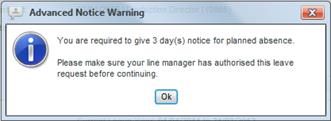 IMPORTANT: If you receive a prompt
indicating that you must give a minimum number of days notice, contact your Line Manager to confirm before
proceeding to Step 2 – Days/Hours.
IMPORTANT: If you receive a prompt
indicating that you must give a minimum number of days notice, contact your Line Manager to confirm before
proceeding to Step 2 – Days/Hours.
Step 2 – Days/Hours
- A
summary of the your Leave Request will be displayed
 If the
days/hours are not displayed, a message will appear click OK then enter
your days; the hours will be calculated
If the
days/hours are not displayed, a message will appear click OK then enter
your days; the hours will be calculated- If
it is incorrect, click ‘Previous’ button and change details
- If
it is correct, click ‘Next’ button
Step 3 – Annual Leave Balance
NOTE:
Your request will only be deducted from your annual leave allocation if
you selected Annual Leave as your Leave Reason.
- A breakdown of the Employee’s Annual Leave
balance will be displayed
|
|
Days
|
Hours
|
|
|
Brought Forward
|
0.00
|
0.00
|
Leave
from the previous year (see Contract)
|
|
Leave Allocation
|
0.00
|
0.00
|
Annual
Leave given (see Contract)
|
|
Statutory Lieu
|
0.0
|
0.00
|
Statutory
Leave given if applicable (see Contract)
|
|
|
|
|
|
|
Leave Taken
|
0.00
|
0.00
|
Leave
taken during the year (see Absence Records)
|
|
Future Leave Requested
|
0.00
|
0.00
|
Any
pending or authorised or elevated Leave Request
|
|
|
|
|
|
|
Balance Before
|
0.00
|
0.00
|
Balance to the above
|
|
|
|
|
|
|
Current Leave Requested
|
0.00
|
0.00
|
The
current Leave Request you are entering in
|
|
|
|
|
|
|
Balance After
|
0.00
|
0.00
|
The
Employee’s remaining leave
|
NOTE: Your request will only appear
under Current Leave Requested if your leave falls IN THE CURRENT LEAVE
YEAR. You can view the Current Leave Year
dates when creating a NEW Leave Request.
- If you want to change your Leave Request,
click ‘Previous’ button (for example, a negative balance)
- If
you do not, click ‘Next’ button
Step 4 – Confirmation
- A
summary of your Leave Request will be displayed
- If
you want to change your Leave Request, click ‘Previous’ button
- If
it is correct, click ‘Save’ button
Step 5 – Complete
- A
message states that your Leave Request has been accepted and all parties
will be notified
- ‘Click
Return’ - this returns you to the Employee’s Home page
- You
and the Employee will both receive an email detailing this request.
This Leave
Request can be viewed under status Pending.
Viewing Leave
Requests
You can view Leave Requests
in two ways: all your team’s Leave
Requests at once or individually by Employee.
On your Home page under Pending/Elevated Leave
Requests, you will see all requests for your Team. Once you have created a Leave Request, the
Leave Request will flow through the stages below. To learn how to manage your Leave Requests
and view Leave Requests from the Team Absence Calendar, see Managing Leave
Requests.
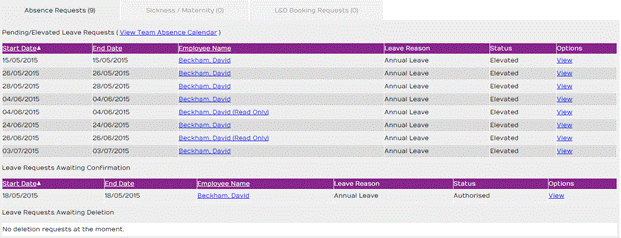
Viewing Individually
by Employee
On the Employee’s Home Page within Leave Requests
Section, you can view the Employee’s requests by selecting a Request Status
Filter (see statuses below) then click on the View link to see the request
details for each.
Leave
Requests statuses are:
|
Pending -
|
Awaiting Manager to approve/decline
|
|
Elevated -
|
Manager’s approval outstanding – HR Administrator informed
|
|
Authorised -
|
Manager has approved your request
|
|
Confirmed -
|
Manager confirms that the Employee has taken the
leave
(if the employee does not take this leave – DO NOT confirm,
the employee will need to Request Deletion)
|
|
Declined -
|
Manager has not approved your request
|
|
Deleted -
|
Employee has deleted the Leave Request
|
|
Deletion Requested -
|
Manager has Authorised then Employee request Deletion - Manager to
approve Deletion
|
From your Home Page and/or the Team Absence
Calendar, you can manage all Leave Requests for your Team and view the Team
Calendar. You can Approve, Decline,
Delete Leave Requests and more. Below we
go through the stages of a Leave Request from your Home page.
Once you and/or an Employee have created a Leave Request, the Request
will appear here in a Pending status.
The Pending Leave Request will move to an Elevated
status when either of the following conditions occurs:
·
The number of days since the Leave Request was
added exceeded the pre-determined maximum number of days configured by HR
Administrator.
·
The Start Date of the Leave Request less than the
minimum number of days advance notice required, also pre- configured by HR
Administrator.
You can action a Pending/Elevated Leave Request in
one of the following three ways:
To Authorise/Decline a
Pending/Elevated Leave Request
1) From your Home
Page, Select the relevant Leave Request from the list, Click the View Link
2)
Click the ‘Authorise’ button (to approve) OR
go to Step 8 to Decline
3)
This will prompt ‘Are you sure you
would like to authorise this leave
request?’
4)
Click
Yes (or click No which returns you to Leave Request
Details Screen)
5)
This
will prompt ‘The leave request has been authorised’, click OK to return
to your Home Page
6)
The
Employee receives an email detailing this request
7)
This
record can now be viewed from the Employee’s Home Page under Authorised status
and from the Calendar
OR
8)
Click ‘Decline’ button (to not approve)
9)
This will prompt ‘Are you sure you
would like to decline this leave request?’
10) Click Yes (or click No which
returns to Leave Request Details Screen)
11) This will prompt ‘The leave request has been
declined’ - click OK to return to your Home Page
12) The Employee receives an email
detailing this request
13) This record can now be viewed from
the Employee’s Home Page under Declined status and from the Calendar
The ‘OK’’ button
returns to your Home Page.
NOTE: At Elevated status, the HR Administrator(s)
is also informed by email.
 You can also view and amend only
Pending/Elevated Leave Requests. The
Calendar displays all your team’s absences for a selected time period. In addition, you
can print the Calendar by clicking on the
You can also view and amend only
Pending/Elevated Leave Requests. The
Calendar displays all your team’s absences for a selected time period. In addition, you
can print the Calendar by clicking on the
 located below the calendar
and/or press Print Screen on the keyboard and paste into an email.
located below the calendar
and/or press Print Screen on the keyboard and paste into an email.
From your Home Page, click the Team Absence Calendar link.
You can click the
‘Back’ button on the Team Absence Calendar which will return you to your Home
Page.
To View Leave Requests
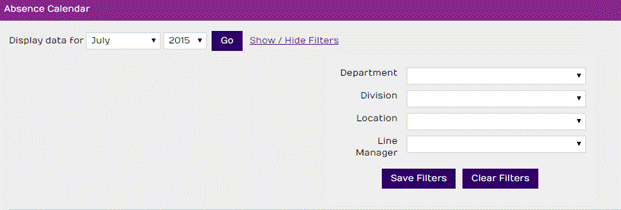
Select a month and year or if you wish, you
can click ‘Show/Hide Filters’ to narrow your search - then click the ‘GO’
button. This will display a list of Employees with their relevant absences for
the search criteria you selected. A key
is displayed below the calendar to indicate what each colour represents on the
calendar and you can hover over the colour to display a summary of the Absence
Episode.
To Action Leave Requests
Under Outstanding Leave Requests, the
Calendar displays a list of Requests that have not yet been actioned.
1)
Select the relevant Leave Request from the list
2)
Click the Authorise
link to approve (OR go to Step 9 to Decline)
3)
Prompts ‘Are you sure you want like to authorise
this leave request?’
4)
Enter a comment to the Employee if you wish
5)
Click
Yes (or click No which will return you to Leave Request Details Screen)
6)
Prompts
‘The leave request has been authorised.’, click OK to return to your Calendar
7)
The
Employee receives an email detailing this request
8)
This
action will appear on the Calendar and can now be viewed from the Employee’s
Home Page in the Leave Request Section under Authorised status
OR
9)
Click Decline
link to not approve
10)
Prompts ‘Are you sure you want to decline this leave
request?’
11) Enter
a comment to the Employee if you wish
12) Click Yes (or click No which will
return you to Leave Request Details Screen)
13) Prompts ‘The leave request has been
declined.’, click OK to return to your Calendar
14) The Employee receives an email
detailing this request
15) This action will remove this
Request from the Calendar and can now be viewed from the Employee’s Home Page
in the Leave Request Section under Declined status
Access the Team Absence Calendar from anywhere in the System by clicking on the toolbar.
1)
Open
the ESS Leave Request email,
2)
Click
on the review
this request link, the Team Absence Calendar is displayed - if the
Manager Self Service Login Page appears; log in
3)
Under
the Outstanding Leave Request, the System ticks and highlights the relevant
Leave Request from the email
4)
Then
follow the same Steps under To Action Leave Requests (just above) to take
action
When the End Date of the Leave Request has
passed, the Leave Request will appear here.
This is where you will verify that the Employee has actually taken the leave. Once you
know that the Employee has taken this leave, do the following:
- Select the relevant Leave Request from this list
- Beside this record, Click the View
Link
- Click the ‘Confirm’ button (or click OK to return you to your Home
Page)
- This
will prompt ‘Are you sure you would like to confirm this leave has taken
place?’
- Click
Yes (or No which will return you to Leave Request Details Screen)
- This will prompt ‘The leave request has been confirmed’, click OK to return to
your Home Page
- This action will create an Absence Record
in PAMS and notes a Blue colour on the Calendar
- The Employee will receive an email
detailing the request
NOTE: The Leave Requests Awaiting Confirmation List
shows only authorised Leave
Requests.
If the employee did not
take this leave; the employee will need to Request Deletion.
Once an Employee has Request Deletion of an
Authorised Leave Request, the Request will appear here. You will need to delete the Leave Request as
follows:
To Delete a Request Deletion,
- Under
Leave Requests Awaiting Deletion, select the relevant Leave Request
- Click
on the View
link
- Enter
a comment to the Employee if you wish
- Click
Delete (or Click OK to return to your Home Page)
- This
will prompt ‘Are you sure you would like to delete this leave request?’
- Click
Yes (or No which will return you to Leave Request Details Screen)
- This
will prompt ‘The leave
request has been deleted’, click OK to return to
your Home Page
- The Employee will receive an email
detailing the request
This record can now be viewed on the Employee’s
Home Page under Delete status, see the section “Viewing Leave Request”
To
Delegate Leave Request To
You can have
another Manager take care of your Employee’s Leave Requests and Absence Records
if you are away for example, while you are on Holiday. To do this, do the following:
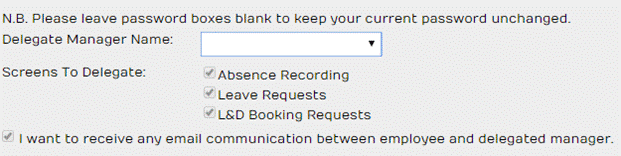
From your My
Profile Screen beside the Delegate Leave Request To field, click on the
drop-down arrow and select a Manager from the list then choose which screens
you would like to delegate to your delegate manager. You will have the option to choose whether
you want emails sent to you regarding the communication between employee and
manager by ticking or unticking the checkbox.
Once you are happy enough click the ‘Save’ button. An HR Administrator will also be able to
delegate a Manager if you are unable to.
When the
delegated Manager logs into MSS from their Home Page on the Leave Requests
list, the delegated Manager’s employees will be displayed in blue with a blue underline
which creates a link to this Employee’s home page. Those employees with no link are the
employees that have been delegated to them (your employees).
NOTE: The delegated
Managers will only be able to manage your Employee’s Leave Requests, view these
Leave Requests, their Absence Records and their Training records on the Absence
Team Calendar.
The delegated
Managers will not have access to your Employees’ Employee Links, be able to
create/edit Absence Records and/or Training records nor will your Employees
appear in this Manager’s reports.
To
Undelegate Leave Request To
To unassigned a Delegate Manager, do the
following:
From your My
Profile Screen beside the Delegate Leave Request To field, click on the
drop-down arrow and select the blank entry from the list then click the ‘Save’
button. An HR Administrator will also be
able to undelegate a Manager if you are unable to.
From your Home Page notice the Leave
Requests listed will now only display your Employee’s in blue with a blue underline
which creates a link to this Employee’s home page. The delegated Employees no longer appear.
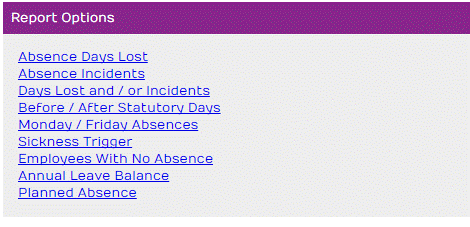
Manager Self Service provides various
absence reports you can run, print, export to Microsoft Excel and other formats
based on your team’s information. Most
of the reports can be sorted, grouped and filtered on various fields. You can also click
the ‘Change Report Parameters’ button which takes you back to the Report
Parameters Screen. Below gives a
brief description of each Report listing the fields that are displayed.
Displays Employees with a user defined number of
days within a defined period of time for the selected absence reason(s)
Shows:
Employee Number, Name, Absence Start Date, Absence
End Date, No of Days, No of hours, Reason for Absence, Extra Analysis and
Employee Total, Group Total, Grand Total
Displays Employees with a user defined number of
Incidents of absence within a defined period of time
Shows:
Employee Number, Name, Absence Start Date, Absence
End Date, No of Days, No of hours, Reason for Absence, Extra Analysis and
Employee Total, Group Total, Grand Total
Displays Employees
with a user defined number of days and/or incidents of absence within a defined
period of time with or without Notes
Shows:
Employee Number, Name, Absence Start Date, Absence
End Date, No of Days, No of hours, Reason for Absence, Extra Analysis, Notes
(optional) and Employee Total, Group Total, Grand Total
Displays all One Day absences which occur before or
after any Statutory Day within a user defined period of time
Shows:
Employee Number, Name, Absence Start Date, Absence
End Date, Statutory Day, No of Days, No of hours, Statutory Day, Reason for
Absence, Extra Analysis and Employee Total, Group Total, Grand Total
Displays all One Day absences which occur on a
Monday or a Friday within a user defined period of time
Shows:
Employee Number, Name, Absence Start Date, Absence
End Date, No of Days, No of hours, Days of Week, Reason for Absence, Extra
Analysis and Employee Total, Group Total, Grand Total
This report shows All OPEN Sickness Absence
Records, that is, all absence records which do not have a To Date entered, if
Medical Certificate’s Valid to date has expired and/or if Medical Certificate
is due based as define by your Human Resources Department
Shows:
Employee Name, Employee Number, Sickness Start
Date, Total Days To Date, Action Required and Group Total, Grand Total
Displays all Employees who
have no Absence Records for defined Reasons for Absence in a user defined
period of time
Shows:
Employee Number, Name and Grand Total
This report is an Annual Leave summary for all
Employees
Shows:
Employee Number, Name, Days: Brought Forward,
Entitlement, Statutory Lieu, Total Entitlement and Taken Balance: Days and
Hours; Hours: Brought Forward, Entitlement, Statutory Lieu, Total Entitlement
and Taken Balance
This allows the manager to generate a report on
all the absences of all employees under his/her supervision within a chosen
time period using specific Parameters, Groupings and Filters such as Absence
Reasons, Location, Department and the ability to exclude Leavers from the
results. After generating the report, it can then be printed or exported in a
format such as, .pdf or .xls
- To
change the Report Period, simply type in the desired dates, or click the icon and then
select the dates through it.
- To
add an Absence Reason to the filter, select it by clicking on the
appropriate reason then click the
 button.
This will appear under Selected Absence Reasons
button.
This will appear under Selected Absence Reasons
- Clicking
the double arrow
 will move all Absence Reasons across to
Selected Absence Reasons.
will move all Absence Reasons across to
Selected Absence Reasons.
- To
remove a reason from Selected Absence Reasons, click the appropriate
reason followed by the single arrow

- Clicking
the double arrow
 will remove all reasons from Selected
Absence Reasons.
will remove all reasons from Selected
Absence Reasons.
- Click
Next
- Do
the same for appropriate Groupings
- Click
Next
- Do
the same again, for appropriate Filters
- Click
Previous to go back to Report Filters
Clicking
Cancel will bring you back to your homepage
Click Generate
to run the Report
When you have generated this report you
will have a few options to edit, change parameters or print the report:

Once your ESS account is approved, you will be
able to access your ESS account with one click on the toolbar – ‘My ESS’ to ‘My
MSS’ and vice versa
Shown here:

Once you are finished using Manager Self
Service, please remember to Logout.
Click  button on the toolbar. This will return you to your Login Page.
Your session in the Manager Self Service
System will expire after 30 minutes if left untouched on the computer screen;
this will return you to your Login Page and require you to enter your login
details.
Should you have
any questions, please contact your
Human Resources
Department